Call Features
Introduction
You can call anyone with a phone number or answer calls from anyone calling your work number. When you make these types of calls, it's just like making a regular phone call from any other phone. Additionally, you have several in-call features you can utilize like hold, transfer, conference, and more.
<span id="topic-1" style="padding-top:40px;">Place a Voice or Video Call</span>
With Webex, you can make audio or video calls. You can make a call in Webex from many different locations. Just look for the icons of the audio or video call options.
To make a call using the Dialpad:
- 1. Tap on the Calling icon.
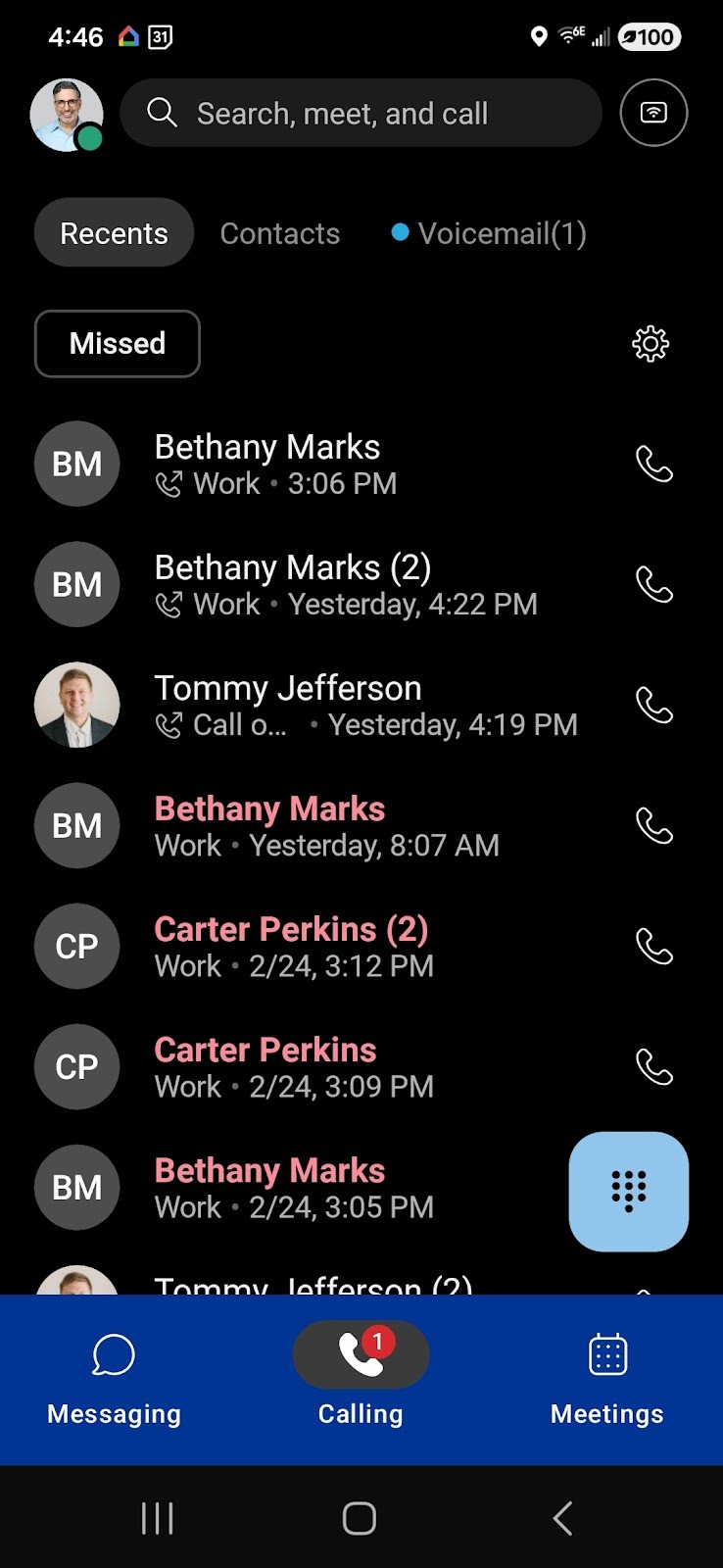
- 2. Tap the Plus icon and press the dialpad.
- 3. Enter a phone number in the dialpad. Then choose whether you want to make it an Audio or Video call.
You can also place a voice or video call by tapping on the information (i) icon of the previously made call in the Calling tab under Recents or in the Missed Calls page.
To make a call using the Contacts tab:
- 1. Tap on the Calling Icon.
- 2. Tap the Contacts tab and locate the contact you would like to call.
- 3. Tap on the contact and choose whether you want to make it an Audio or Video call.
To make a call using the Messaging tab:
- 1. Select the Messaging icon.
- 2. Select the person you would like to call.
- 3. Choose whether you want to make it an Audio or Video call in the upper right corner of the window.
To make a call using the Voicemail tab:
- 1. Select the Calling icon.
- 2. Tap on Voicemail.
- 3. Select an existing voicemail from the person you would like to call.
- 4. Choose whether you want to make it an Audio or Video call.
<span id="topic-2" style="padding-top:40px;">Place a Call on Hold</span>
To place a call on hold:
- 1. While on a phone call, select More. Then select Hold.
- 2. After you put the call on hold, your spaces list shows that it's on hold.
- 3. To go back to your held call, select it from the spaces list. Then select Resume, and your call will be active.
<span id="topic-3" style="padding-top:40px;">Make a Conference Call</span>
To initiate a Conference Call from an active call:
- 1. Select More.
- 2. Select Conference.
- 3. Enter a phone number or type the name of the recipient,
- 4. Proceed to choose whether you want to make it an Audio or Video call.
- 5. Select Merge to join the two phone calls.
<span id="topic-4" style="padding-top:40px;">Transfer a Call</span>
If you are on an active call, you can perform a Semi-Attended or an Attended Transfer to another contact within the Company Directory or any other number you dial via the Dialpad.
To transfer a call:
- 1. While you're on a phone call, select More. Then select Transfer.
- 2. Enter the number or the name of the person to whom you want to transfer the phone call.
- 3. Choose whether you want to make it an Audio or Video call. Your original phone call is put on hold.
- 4. You can let the other person know why you're transferring the call to them by announcing the call upon answering and then tapping the Complete Transfer button.
- 5. Or, you can complete a semi-attended transfer by tapping the Complete Transfer button as soon as it starts ringing.
<span id="topic-5" style="padding-top:40px;">Listen to Voicemail</span>
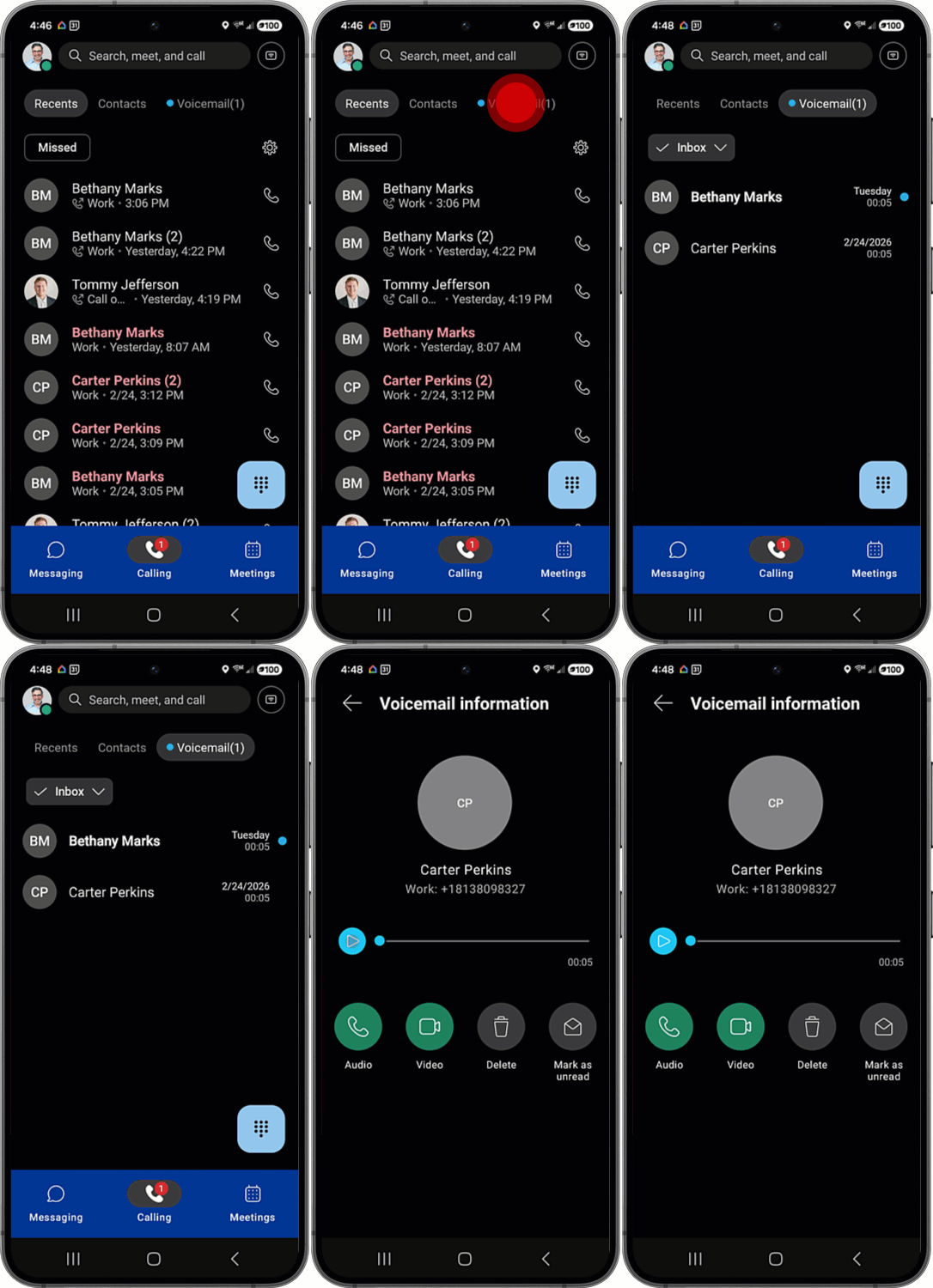
When you have a voice message waiting for you, you'll see a red badge counter (Message Waiting Indicator) next to your voicemail icon. After you listen to your messages (from the app or your desk phone), the badge counter disappears. You can also call your voicemail number to set up greetings, send voice messages, and more.
To listen to voicemail messages:
- 1. Go to the Calling tab
- 2. Select Voicemail.
- 3. Choose a message and then listen to the message by selecting the Play icon.
- 4. From the Voicemail tab, you can call someone back, delete the message, or mark it as unread.
<span id="topic-6" style="padding-top:40px;">Pull a Call (Call Pull)</span>
With Call Pull, you can pull active calls from your desk phone to your Webex app, or vice versa. You can also move an active call from your desktop app to your mobile app. This feature is helpful when switching between devices, while on the go, at home, or in the office.
To pull a call from your desk phone to your Webex Mobile App:
- 1. While on an active call on your desk phone, go to the Webex app on your Android.
- 2. Select the Calling tab.
- 3. Tap the Plus icon and select Pull Call. The call is now moved from your desk phone to your Webex Mobile app.
To pull a call from the Webex Mobile app to your desk phone:
- 1. While on an active call, pick up your deskphone’s handset. Press (Star) *11. The call is now moved from your Webex Mobile app to your desk phone.

<span id="topic-8" style="padding-top:40px;">Park and Retrieve Calls</span>
With the call park feature, you can transfer calls through the use of call park groups. A call park group is a group of users who can park calls against phone lines. Call park groups are set by your administrator. Call park is similar to placing a call on hold, except that a parked call can be retrieved from any other phone.
If you’re a member of a call park group, you can park an active call on Webex. When you park a call, the call gets assigned a parked number. You can then use that parked number to retrieve the call from another device, or share the number for someone else to retrieve the call from their device.
To park a call:
- 1. While on a phone call, select More.
- 2. Select Group Park. The call is placed on hold and the extension of where the call is parked is displayed.
Note: If you parked a call by accident, you can retrieve it by selecting the green Retrieve button at the bottom of your call window. This call window is only available for 10 seconds.
- 3. Take note of the extension to use yourself or to share with the person who needs to retrieve the call.
To retrieve a call:
- 1. Select the Retrieve Call option from the footer of your app.
- 2. Enter the extension of the call you’d like to retrieve.
Note: If you park a call and it isn’t retrieved within a certain amount of time (time limit determined by your administrator), the call gets returned to the person who parked the call.
<span id="topic-9" style="padding-top:40px;">Manage Your Call Queue Status</span>
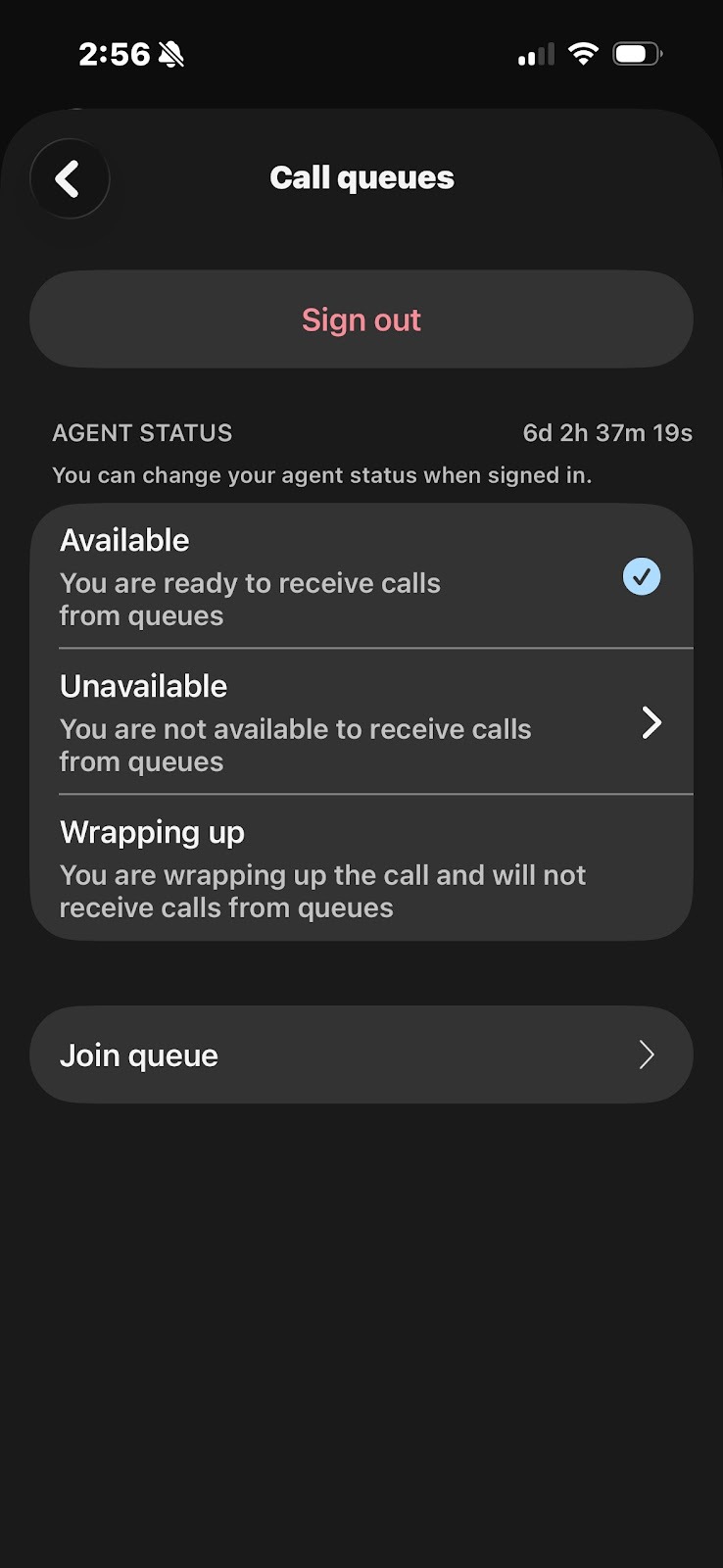
If you’re assigned to a call queue(s), you can join or unjoin a call queue and change your queue from your Webex app.
- 1. Tap your profile picture or initials.
- 2. Tap Call queues.
Note: You only see the call queues section, if you're a member of a call queue.
- 3. Under Agent Status, you can change your automatic call distribution status for your call queue:
○ Available—You're ready to receive calls.
○ Unavailable—You're not available to receive calls. Tap the arrow to select an unavailable reason.
○ Wrapping Up—You're near the end of your shift but you can still receive calls.
- 4. Tap Join queue, here you can join or unjoin a specific queue by toggling it on or off.
Note: Your supervisor determines which queues you can join or unjoin. If a toggle grayed out, you can't make a change for that queue.